Release health
Release health lets you tell at a glance whether a version is ready to deploy. It is calculated from a checklist of rules, and the result appears as a percentage and a label in the Health column of the Central release view.
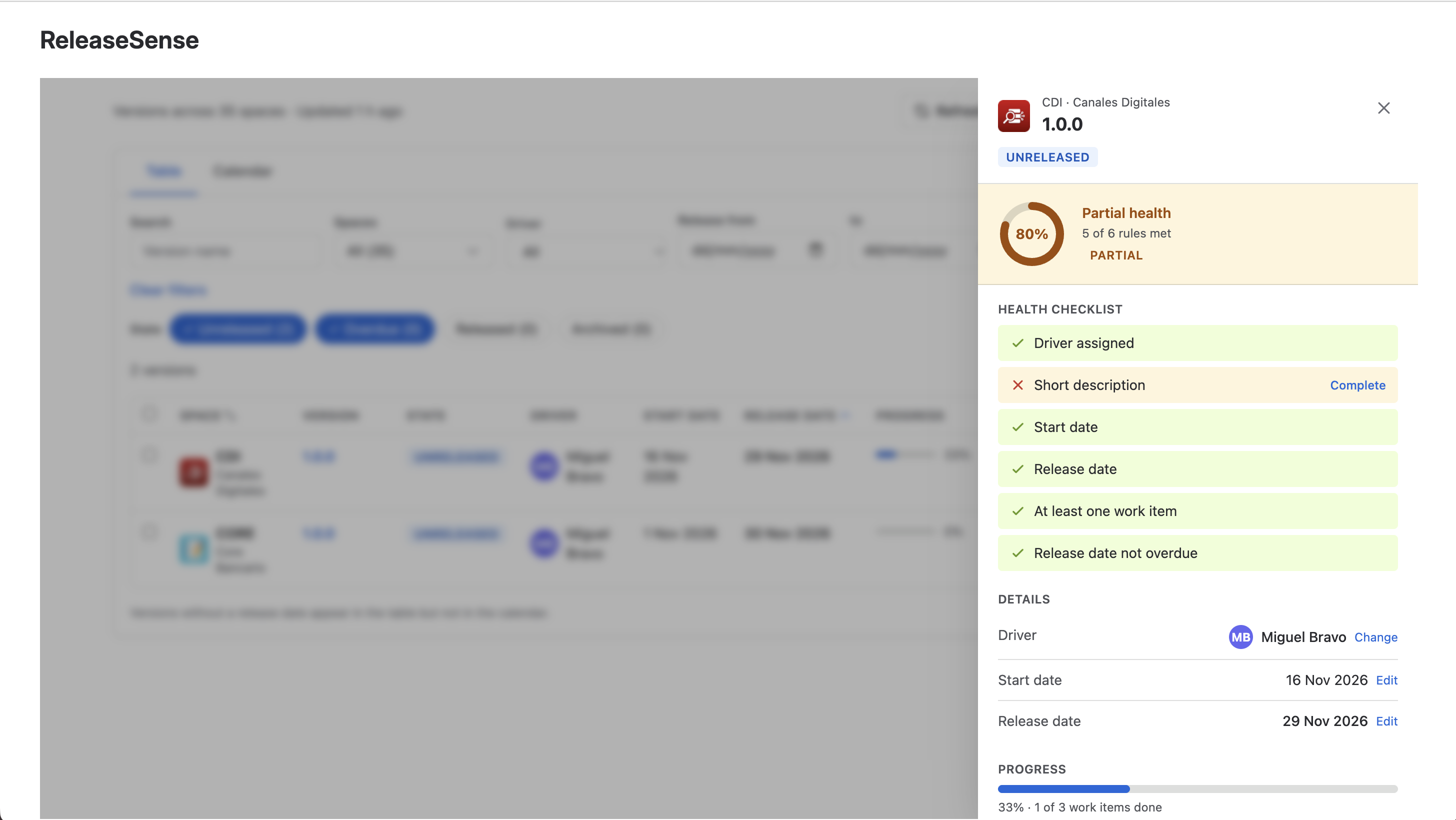
To see the detail, open the version from the table. The panel opens on the right.
Checklist rules
- Driver assigned: the release has a person responsible.
- Short description: the release has a short description.
- Start date: the release has a start date.
- Release date: the release has a release date.
- At least one work item: the release has at least one work item.
- Release date not overdue: the release date has not passed.
Each rule shows ✓ when it is met or ✗ when it is missing. The pending rule includes a Complete link to fix it from the panel.
Health label
The panel shows the health percentage, how many rules are met (for example, "5 of 6 rules met"), and the status label:
- PARTIAL (amber): some rules are still missing.
- COMPLETE (green): all six rules are met and health is 100%.
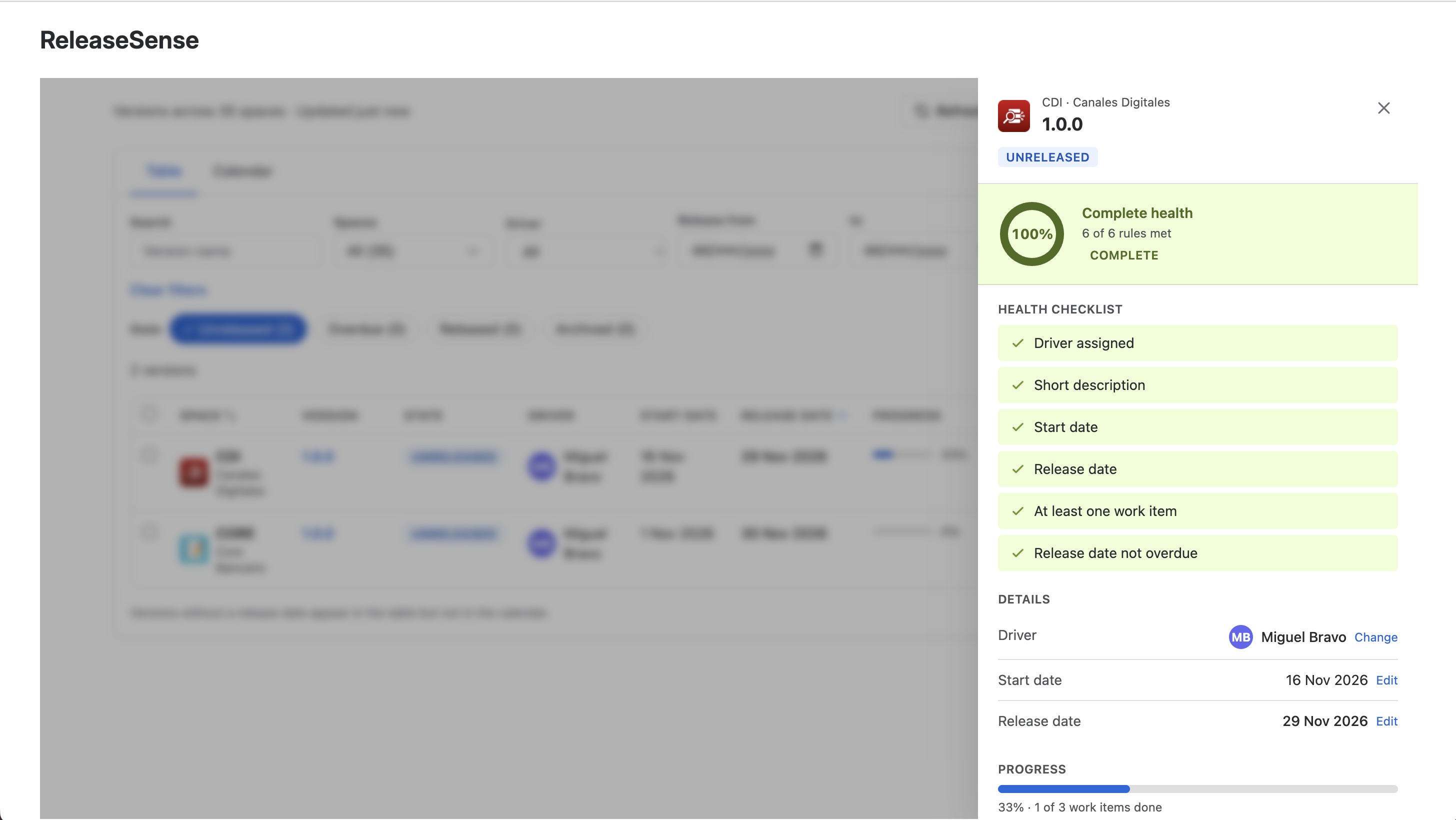
Actions from the panel
- Driver: click Change to change the person responsible.
- Start date and Release date: click Edit to change the dates.
The panel also shows the release progress. To see the stage of each work item, see Progress by workflow stage.